Tutorials

Snow Leopard to Lion; The painless way

by Ali. 0 Comments

Conclusion first!

Let me save you a few minutes (and perhaps hours of suffering on your Mac) and tell you the end of the story in the beginning. Upgrading has been always a tricky way of installing a new operating system. Granted it is smooth enough on a Mac but it comes with its own cons, like wasted disk space and unused files here and there.

So backup your files, which you need to do anyway, and go for a fresh install. Don’t be lazy, it just needs one more hour of your time.

Here is how you do it:

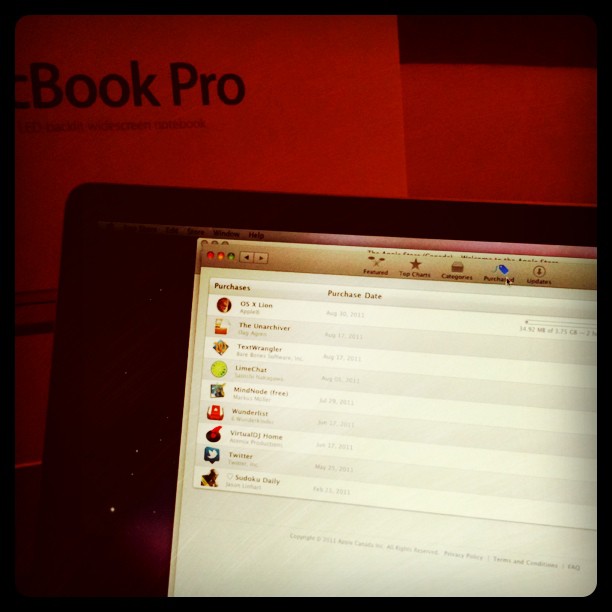
1. Go to Mac App Store (Run the application on your Mac)
2. (Purchase and) download Mac OS X Lion. It’s a big file (almost 4GB), so refilling your coffee won’t hurt.
3. Once the download is complete, open the Applications folder on your Mac and find Install Mac OS 10 Lion icon.
4. Right-click on the file and select Show Package Contents.
5. In the folder find Contents/Shared Support/InstallESD.dmg.
6. Right-click on InstallESD.dmg and select Open with > Disk Utility.
7. Insert a blank DVD and click Burn on the toolbar. Another coffee or maybe even dinner will fill the void.
8. Voila! You now have a bootable DVD of Mac OS X Lion.
9. Boot the system with DVD in the drive while holding the Option key (that is, on your keyboard).
10. After a few seconds you’ll be presented with 2 icons on the display, a hard drive and the Mac OS DVD.
11. Select the DVD (click on the arrow key below it) and follow the instructions. The system will start installing the 12. new operating system

Warning: This process will delete all data that existed on the disk prior to install. Backup your files on an external device first.

Now the story

It’s been more or less a month since Mac OS Lion is out in the wild. As with all new releases of operating systems people react to it very differently. From blind love to pure hate, and well, that’s not quite informative.

One of the best reviews I read about Lion was from Ars Technica, written by John Siracusa. I’d be lying if I say I read it all; it’s a friggin’ book. But I enjoyed the unbiased view of the author and learned stuff too. You might be wondering why do I just woke up from the rock I was living under and started writing about installing Lion.

First of all, it’s not that very safe to upgrade to a new OS the moment it is available for download. The irrationale joy and excitement of a hot-from-the-oven product might burn you. The very early adopters usually share invaluable information about their first impressions and sufferings. Then I didn’t think my old (late 2007 , yes 2007!) MacBook Pro seem to be a bonafide candidate for the job. So I waited until I buy a new laptop, which was 2 days ago. A Core i7 MacBook Pro. It’s a descent machine and I quite like it.

About upgrading to Lion; the laptop came with Snow Leopard installed on it and a free download code for Lion. Instead of just upgrading to Lion I chose to run a fresh install on it to have the peace of mind that no old file will be left abandoned on the system and no library will conflict with a new one. Time will tell.

Now if you excuse me I have to go finish installing the apps I need on daily basis. You can refer to conclusion (top) for a quick tutorial on fresh-installing Lion.

government,politics news,politics news,politics

Convert video formats on your Mac for free

by Ali. 0 Comments

This article is originally posted on Shufflegazine.

Earlier today I received a dinosaur JVC camera with a truck load of video clips. We are traveling to Lebanon to have our annual seminar on the beautiful mountains of Farya and somebody had to make a fun video intro for our office. Since I still did not learn to say “no” easily, it ended up on my desk.

After opening the files, I found out the files are MOD type, needing to be converted before importing into iMovie. A quick search revealed that I need to pay around $35 for a decent video converter, but I just remembered using HandBrake for DVD ripping long time ago. And the rest is history.
Let’s see how you can convert a host of different video formats to each other in few easy steps and more importantly for free.

Read the full story from Shufflegazine.

government,politics news,politics news,politics

The secret of staying productive while coding

by Ali. 0 Comments

Most people use versioning systems like Subversion, Mercurial, and git to maintain their code while working on software and web projects. There are also hosted solutions like github and bitbucket providing developers with more features than a traditional version control environment.

But sometimes you just want to keep your code in a safe place and make sure you have reliable backup of the different versions, and that’s it! For smaller (or personal) projects especially, using versioning systems is an overkill. But what could be the solution?

If I want to summarize it quickly, the ideal solution will be a one that:

  • Is hosted in the cloud (online)
  • Is easy to setup
  • Works without you doing any administration work
  • Is cheap and preferably free
  • Keeps you productive
  • Keeps coding synchronized on multiple workstations
  • Allows you to maintaing other related material, like PDF documentations, next to your code.

I think I found how to answer all these questions with one answer, let’s see how.

Storage as a service

Dropbox is a cloud-based storage service that keeps your files safe and in sync between multiple computers. It is basically created for backup and file synchronization, but I use it for coding and maintaining other contents like my web projects, and the book/article drafts including the drafts of this very article.

You will get 2GB of online free space which is pretty enough for many purposes, but it is always possible to upgrade to bigger plans.

Getting started

First create a Dropbox account and install the application (Windows, Mac, Linux) on all the computers you are working with. It is good to take a tour before , to check out the features.

Dropbox creates a local folder on your computer that is synced to your online folder. A mirror in the cloud, literally.

The solution I am proposing would work the best if all your computers run the same operating system, because you should set an identical path for the local folder on all computers. For example if you have a Mac and a PC, the folder structure difference will cause 2 different Dropbox folders (e.g. /Users/user/Dropbox and C:\MyDocuments\Dropbox\).

In my case, I set it to /Users/ali/Dropbox/ on both my home Macbook Pro as well as on my office Mac Pro. When I work at home (on my MacBook Pro) I store my ongoing work and it syncs with the remote folder. When I’m at work it sync back with my workstation and I can continue the work with no interruption.

The reason behind having similar folder structures is that when you are programming, you often use absolute file and folder references in the development environment. So having all computers using the same folder structure will guarantee you won’t face any silly issues in the code testing procees.

Using Dropbox

Now that you installed Dropbox and setup the folders, move a working folder or file, e.g a web project or a document you are working on, to the Dropbox folder. It will automatically start to synchronize the contents of the local folder with the remote folder (in the cloud). As you update the files, Dropbox will synchronize it with the remote folder and the good news is that it keeps a copy of every single version of the files as backup.

For the free plan the versions older than 30 days will be deleted, but in the paid version they will stay forever! so you will have all the earlier versions of your files.

On the other hand, when you open the other computers (that are configured), the local folder of Dropbox will be automatically synced with the remote folder, updating all files that have been updated in other computers. Then you can continue working on your project from the line you have left on the other computer, without carrying USB sticks around.

That was easy.

Happy yet?

Dropbox offers an intuitive web access interface to all versions of your files, so you can restore or download any older version. You can also setup a shared folder between you and other Dropbox users (say, your colleague) to exchange data in a productive way.

Dropbox Menu (Mac)
Dropbox Menu (Mac)

I am happily using Dropbox for syncing my files and it didn’t let me down even once. It also helps me keep the older versions in case I messed the current version. Every save you perform on your files is stored in Dropbox, so it is as if you have a live history of your work bit by bit.

government,politics news,politics news,politics

Creating online data forms with no coding at all

by Ali. 0 Comments

Many times you need to collect information from users (e.g. employees) through online forms.

As I just did for my HR department as a favor, you too can do it very quick (but not dirty) in Zoho Creator.

I assume that you have a basic understanding of Zoho Creator and databases in general. If not you can have a look at the Wiki site, or more generously check out the respective chapter in my book Foundation Zoho: Work and Create Online, out September 2009.

Creator allows you to quickly setup a database by designing the data forms, and then embed the forms in any web page. It means that you skip many steps (compared to when you do such task in a traditional way of coding everything yourself) and let Creator to take of it. You might realize the skipped steps in this tutorial, and well, if you didn’t, don’t bother.

Now, let’s create a database application that holds the data of a survey you run on your website.

Getting started

First you need to create the application itself. Then we continue with adding the necessary forms.

  1. Open Creator (http://creator.zoho.com) and log in with your Zoho credentials. Create an account if you don’t have one yet.
  2. If it is your first time it will automatically open the application wizard (figure 1) where you create the application. Enter webForms in the Application Name and survey in the Form Name.

    Zoho application wizard

    figure 1. Creating the application.

  3. In the form designer (figure 2) you can create a full-fledged data entry form with standard elements, coding, and validation. This tutorial will just use the design features, so start with dragging a Radio button from the field-box (left) and dropping it on the form just like in figure 3.
    Zoho Creator form designer
    figure 2. The form designer.

    Dragging a radio-button
    figure 3. Dragging a radio button.

  4. Fill in the values in the Adding Radio dialog box as you see in the figure 4. Then click done when you are finished. These elements will determine the design and basic behavior of the radio button.Setting the field values
    figure 4. Setting the values for the radio button.

  5. Check the result of the previous steps on the form. You can see a radio button set with 3 options to select and a label in the form of a question. The first element of your form is built and we are going to perform similar tasks for the rest of the elements.
  6. Now add a Checkbox to the form: drag it from the field-box and drop it on the form below the radio button.
  7. Fill in the values for the check-box as in figure 5. Then click done.
    Setting values for the check-box
    figure 5. Setting the values for the check-box.
  8. Drag and drop a Multiline and fill in the values as you see in the figure 6.
    Setting values for the multiline text
    figure 6. Setting the values for the multi-line.
  9. For the last field, drag and drop an Email and set it just like figure 7.
    Setting values for the email field
    figure 7. Setting the values for the email.
  10. Check the final form and compare it to figure 8. They should look almost identical.
    Final design
    figure 8. Reviewing the final design.

Well,  you have just created your very first form. It’s now time to run it and test how it works. Then you will embed it in your website for the prime time.

Getting the embed code

To refresh your memory let me mention that to place the form in your website in order to gather information from the visitors, you need to embed the survey form in a web page of your website. Although you won’t write a single line of code, it is always beneficiary to be a bit familiar with HTML, maybe to that extent that you know every web page is made of HTML code. So all you will do is to get a piece of HTML code (snippet) and paste it in the right position in the source code of the target web page.

Before that, you need to run the Creator application, webForms. Until now, you were in design mode, creating the pieces of the application (well, just a form so far). Running an application on the other hand, is like executing a standard application where you can interact with different parts of it, enter and retrieve data.

  1. In design mode (you are already there) find the big yellow button, Access this application and click it. The application will open in the run mode and all design elements will be replaced with a good looking environment waiting for you to enter data.
  2. On top of the form, next to its title, click the More Actions menu and select Embed in your Website (figure 9).
    Starting the embed process
    figure 9. Starting the embed process.
  3. Click Click Here in the next dialog box (figure 10) to have access to the form without needing Zoho credentials (while entering data) and then copy the code snippet (to the clipboard).
    The generated code snippet
    figure 10. Reviewing the final design.


Embedding the form

You have generated a embed code that loads the form designed in Creator anywhere in the body of the web page you paste it. Such web page could be a post or a page in your blog, or in any website that you have the rights to add HTML content to.

Here I am just going to demonstrate how to embed our Creator form in a WordPress page. Other blogs (Blogger, MovableType, etc.) or CMSs (Joomla, Drupal, etc.) will follow a similar approach with some difference in the details. The point is to paste the code snippet in a HTML body.

  1. Login to your website (WordPress, in here) admin area.
  2. Add a new page (Pages > Add New) and enter a title as well as some body text.
  3. Turn the editor to HTML view where you can see the underlying code.
  4. Paste the code snippet in the HTML body in a suitable position. The outcome should look like figure 11.
    embedding the form in the code
    figure 11. Creating a page with the form embedded.
  5. Click Publish to save and publish the form.

Testing the form

To test the form you just need to open the container page. The page looks like other pages in your website with a form embedded in it. The Zoho logo appears at the bottom (in the free edition of Creator), but it is no big deal.

Try to enter some values in the form and click Submit when you are done.

If you skip a value that is mandatory (identified with a red asterisk) or enter wrong information (e.g. enter a number in email box) the form will show an error message asking you (the visitor) to enter data correctly (figure 12). It actually validates the values against the rules you have set while designing the form (figures 4, 5, 6, 7).

Testing the form
figure 12. Testing the form.

Web developers will be amazed by the features Creator provides out of the box. Easy interface design and validation plus many other features that are beyond the scope of this tutorial.

Now your visitors are able to participate in the survey and give their feedback using a form that you created in less than an hour.

But where will all that data go?

Extracting the data

Collecting data is not even half of the job. Behind the scene you need to extract the entered data to analyze it for whatever reason that is important form you.

The good news is that while you were busy designing your form, Creator made a View for that particular form by which you can extract the entered data. Views are like customizable portals to data. Although views are way more powerful than just showing you the data, but we just stick to one feature (viewing raw data) for you to see where the incoming data goes to.

In Creator, in the run mode, open the survey View from the sidebar (figure 13).

Extracting the data
figure 13. Extracting data.

You can navigate through data, search, filter, and even export it to different formats. You may even embed this form in another web page, but I leave this to your imagination since you gained enough knowledge to do it yourself.

Congratulations, you have managed to create a simple, but powerful survey application with few clicks and no coding at all.

What next?

Creator is a powerful database application creation platform, that  many call it the online Access. But I believe it is even more useful because it is cloud-based and allows you to create multi-user internet-based applications that can be used by SMBs and SMEs.

The webForms application, can have more forms for guest-book, feedback, inquiry, etc. In fact you can create a full-fledged data oriented website using a blogging platform and a database application hosted on Zoho Creator.

Don’t forget to checkout the Creator help to unleash its power and use it to solve real life problems.

government,politics news,politics news,politics

Develop Google AppEngine with Aptana Studio

by Ali. 9 Comments

Recently I have jumped on Python wagon to play with Google AppEngine a bit. Python is a very fun (and powerful) language and I feel so bad I never touched it before.

There are many editors for Mac OS to make coding in Python even more fun, TextMate and Coda to name a few, but it is not much productive. You need to code in the editor with no code completion for AppEngine SDK, then you need to start the local web sever in the terminal to test your code.

Aptana Studio in the other hand, provides you with a great user interface and many other features, all inherited from the mighty Eclipse. By installing PyDev plugin in the other hand,  you can make Aptana, Python friendly.

However, there are still 2 missing links in the chain of perfection to make Aptana the IDE of choice for developing for AppEngine: Code completion for Google libraries and built-in debugging facilities.

In this tutorial you are going see how to make Aptana Studio your one and only AppEngine development tool in Mac OS X.

Note: I assume that you have a basic idea of Python and Google AppEngine. You should be also comfortable using Mac and installing applications.

Getting Started

First you need to install AppEngine SDK on your Mac. Note that when you visit the download page of AppEngine there is a DMG package for Mac. First, you need to download and install it the way you do in standard Mac applications.

This package will make your Mac ready for AppEngine development, but it will not help you with customizing Aptana. You need to have a copy of all libraries used in SDK on your computer.

For this purpose you need to download the ZIP file listed in the same page (for Linux/Other platforms) and unzip it in a folder in your Mac (e.g. Documents).

Now download and install Aptana and install PyDev, a plugin for Python development in Aptana:

  1. Open Aptana and in My Aptana page (opens when you run the application), switch to Plugins tab.
  2. Find the entry for Aptana PyDev and click Get it.
  3. Go through the installation wizard and restart Aptana at the end, as instructed.

Now you need to configure the environment for AppEngine. Let’s create a new project first.

  1. Open Aptana and create a new project using File > New > Project.
  2. In the project wizard select Pydev > Pydev Project and click Next to continue.
  3. Type in a name for the project and choose 2.5 for Grammer version. This is because AppEngine is  currently supporting Python 2.5.2.
  4. If the Interpreter is empty click the link below to configure an interpreter. Use Autodetect for Aptana to list the available Python installation and proceed.
  5. Click Finish to create and open the empty project.

It is now time for the configuration.

  1. With the project open, open Project > Properties and navigate to PyDev – PYTHNPATH.
  2. Click Add source folder for External Source Folders and browse for the folders you see in figure 1. You can add more libraries if you needed.
  3. Click OK to proceed.

Adding AppEngine library sources
Figure 1

If populating libraries were successful you can see the code completion works just fine.

Code completion in action
Figure 2

Configuring the debugger

Finally you need to configure the debugger, so you can run your projects from within Aptana.

  1. Click Run > Run to open the Run configuration window.
  2. Select Python Run on the sidebar and click New launch configuration (the first button above the sidebar).
  3. Enter a name for the configuration (e.g. AppEngine) and Browse for the project name.
  4. Enter the full path for dev_appserver.py as you see in figure 3.

    Changing the run configuration
    Figure 3

  5. Switch to Arguments tab and enter ${project_loc}/src in the arguments box. You can add more arguments for dev_appserver.py.

    Changing the run arguments
    Figure 4

    Note: If you don’t use the default src folder (that PyDev creates for new projects), you need to omit it in the argument, so it becomes ${project_loc}

  6. Click Apply and then Run the application. You should see the application server run log in the Console window.

Running the appserver from within Aptana
Figure 5

Congratulations. You can now enjoy the power of Aptana while developing for Google AppEngine.

P.S. Special thanks to Joscha Feth because I benefited greatly from his article.

government,politics news,politics news,politics